You can register users and scanners to Epson Connect based on the registered data provided by the scanner.
Only scanners that have been set up can be registered to Epson Connect. Follow the documentation that came with the product to complete the software installation and network configuration.

Registering a Scanner from Your Scanner Panel
 Note:
Note:|
You cannot use the services under a Wi-Fi Direct or Ad Hoc connection.
|
 |
Turn on the scanner.
|
 |
Tap Settings > Web Service Settings > Epson Connect Services > Register > Start Setup on the scanner's home screen.
|
 |
The Epson Connect registration page URL, QR code, and authentication code are displayed on the screen.
An authorization code is required to open the registration page from the URL. Make a note of the authentication code.
|
Note:|
If the setup fails, check Settings > Web Service Settings > Epson Connect Services on the scanner’s panel.
If Registration shows Unregistered, registration with Epson Connect has failed. Check the service status on the Epson Connect portal page. Also, review this FAQ.
If Connection shows Disconnected, the scanner is not communicating. Check your internet environment using this FAQ as a reference.
|
 |
Access the registration page using a computer, smartphone, or tablet device.
|
 |
Enter the authentication code and click (tap) Next.
If you scanned a QR code to access the registration page, the authentication code has already been entered.
|
 |
Review the Terms of Use and Privacy Statement and select the check boxes.
|
 |
Click (tap) Next.
|
 |
When the following screen is displayed, click (tap) the button according to your needs.
|
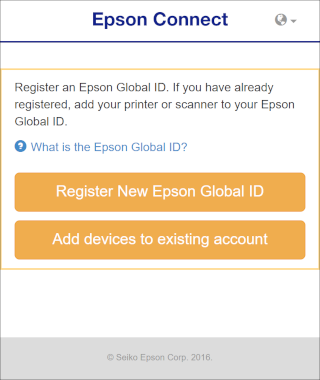

For users with an Epson Global ID
|
Click (tap) Login.
|
|
Enter the email address and password registered in Epson Global ID, and then click (tap) Login.
|
|
On the "Two-step Verification" screen, enter the verification code received by email, and then click (tap) Verify.
|
When the scanner is correctly registered to the entered user account, a notification email is sent to the registered email address.
Epson Connect services are now ready for use.
For users without an Epson Global ID
|
Click (tap) Create Account.
|
|
On the "Register New Epson Global ID" screen, enter an email address and password, select your country or region, and then click (tap) Send Verification Email.
|
An email is sent to the address you registered with the code required for registration.
|
On the "Verify Email Address" screen, enter the verification code you received, and then click (tap) Verify.
|
When the scanner is correctly registered to the entered user account, a notification email is sent to the registered email address.
Epson Connect services are now ready for use.